
Power Broker Update
This is a ‘must’ update for any brokerage utilizing the Unite/Cognition+ Rating integration.
This is also our latest Release for all ON Insurers ready for testing the ON Auto Reform changes.
Anyone requiring assistance with this update is encouraged to contact our Support Team for assistance at 1.778.433.2477 Monday to Friday 7am to 5pm PST.
NOTE: Please have exclusive use of Power Broker and a backup of your BRO folder completed BEFORE contacting our Support Team for assistance.
Enhancements:
EDI:
Merge Electronic Documents
New Merge eDoc method (ask Support for HELP page info):
Filter on Insurer
Send to Printer (if indicated)
New table added for holding Edocs Attachment Type exclusion details
Tables:
User Preference:
New Adobe Acrobat pathway <auto detect> button
Utilities:
Define Your Company Information
Add eMail field to company information – this new eMail field can now be pulled into Statement and Invoice header information
Archive Pathway Logs
New Purged Archive Button added – allowing the ability to create a ‘purged zip file’ freeing up space in your database
Delete File Attached to Abeyance Records
New Statistics Button added – allowing you to run to verify number of files deleting and time involved before actually running the <delete> process
Utilities – Reports:
Policy Transactions by UserID
New MS Excel output option
UNITE/Cognition+ Rating
New ‘Number of Days Driven per Week’ added – this also follows through to download
ONTARIO AUTO REFORM (Currently in Insurer Testing Stage)
Power Broker has now completed the new programming required for the new OAR and has released this Version for Insurer Testing.
NOTE: Once testing is complete, a new version will be released to all Brokerages in time for the May ‘go live’ date (July 1 renewals)
New Coverage2 page has been added
All new relevant Forms (App + 47R) have been added
All new Hab codes have been updated (MERCD / DELPR / AUCOV)
MERCD code list updated with 6 new codes (English and French)
- O2 – Office Machines
- C10 – Cameras/Scientific Instruments
- H6 – Hazardous/Dangerous Goods
- W8 – Wood (Logs)
- W9 – Wood (Lumber)
- A9 – Animals (Livestock)
DELPR code list updated with 1 new code (English and French)
- M (Moving or Storage)
AUCOV code list updated with 20 new codes (English and French)
- NEB – Non-earner Benefit
- NEBOD – Non-earner Benefit for Occasional Driver
- NEBOD – Prestation pour les conducteurs occasionnels sans revenu
- CGCAT – Caregiver benefit (Catastrophic Impairment)
- CGCOD – Caregiver benefit (Catastrophic Impairment) for Occasional Driver
- CGB – Caregiver benefit (Non-Catastrophic Impairment)
- CGBOD – Caregiver benefit (Non-Catastrophic Impairment) for Occasional Driver
- LEE – Lost Educational Expenses
- LEEOD – Lost Educational Expenses for Occasional Driver
- EXV – Expenses of Visitors
- EXVOD – Expenses of Visitors for Occasional Driver
- HHCAT – Housekeeping and home maintenance (Catastrophic Impairment)
- HHCOD – Housekeeping and home maintenance (Catastrophic Impairment) for Occasional Driver
- HHM – Housekeeping and home maintenance (Non-Catastrophic Impairment)
- HHMOD – Housekeeping and home maintenance (Non-Catastrophic Impairment) for Occasional Driver
- DPI – Damage to Personal Items (clothing, glasses, hearing aids, etc.)
- DPIOD – Damage to Personal Items for Occasional Driver
- DEA – Death Benefit
- DEAOD – Death Benefit for Occasional Driver
- FNB – Funeral Benefit
- FNBOD – Funeral Benefit for Occasional Driver
FIXES:
Fix for Enter Fiscal Periods in French error
Drag and Drop corrected. Looks for accurate drive.
Variable AB9 error 12
STOP!!
If you are updating from a Version 4 copy of Power Broker contact SUPPORT before proceeding:
If you have a LOGO and/or use the Signature feature and are using Version 4, please contact Support as there are file changes that will need to be completed BEFORE you do this update.
If you DO NOT have a LOGO and/or use the Signature feature, you can run this update as per normal BUT you will need to run <workstation> for ALL COMPUTERS.
**********************************************************************
PLEASE READ THE FOLLOWING INFORMATION BEFORE DOING THE UPDATE:
Power-Broker Version 5 Update
IMPORTANT! BEFORE YOU UPDATE
Give yourself sufficient time for this update as it could take a while depending how large your brokerage may be.
Backup
Before starting, have you performed a complete backup? You will want to run this backup immediately before performing the update to have the most up to date information (to avoid losing any recent changes a staff member may have made).
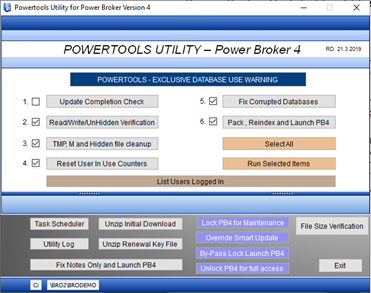
Prior to backing up, we would strongly recommend and running #2 – #6 through powertools to ensure that you will have a clean backup. Ensure that there are no users currently logged in Power Broker by using the ‘list users logged in’ feature in powertools. If you see anyone logged in, ask them to log off. Next select all the items in powertools, except for #1.
Select ‘Run Selected Items’ and wait for the steps to finish running.
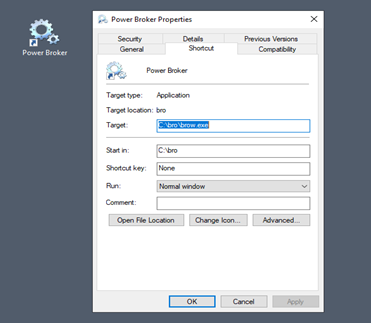
To begin the backup, you will need to determine which drive letter your powerbroker is located on (Example: P:\Bro would indicate that \Bro is located on your P drive. An easy way to do this would be to right-click on your power-broker icon on your desktop, select properties, and left -click on the shortcut tab. You should see the drive path under the ‘target’. Make note of this, as you will need this location later.
*Note* In the example given below, the C: drive is for a single user. You would typically see a P:\BRO or W:\BRO or any other letter in the alphabet. If you do see however, \\SERVER\BRO\BROW.EXE , then this is a UNC path and is NOT permitted. You must use a mapped directory. If it is not, then please call our tech support line and we will be happy to assist.
Next you will need to open your File Explorer and select the respective drive letter. You will need to double click into the bro folder and press (Control+A) to select all items in this directory.
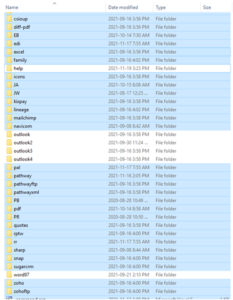
You may deselect all Outlook(s), Help and Word97 folders by holding the control key and single left-clicking the Outlook(s), Help and Word97 folders. You should have all folder/files highlighted except for the Outlook(s), Help and Word97 folders (this will substantially reduce the time for your backup). From here right-click, scroll over ‘7-zip’, and select “add to archive”. You will want to locate this to the root of the drive (outside of the bro folder).
This compressed .zip file will be a huge asset when restoring information if something goes wrong. We cannot stress how important this backup is. Only proceed when you are confident that a backup has been completed.
To get a copy of 7-zip, please visit www.7-zip.org and download the free version.
Preparing for the update
Before proceeding with the update, you will want to confirm that everyone is out of powerbroker. You can view user logged in through powertools by clicking the ‘List Users Logged In’ button.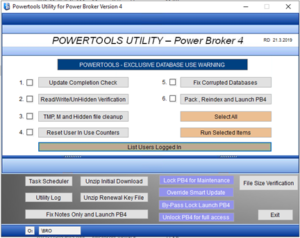
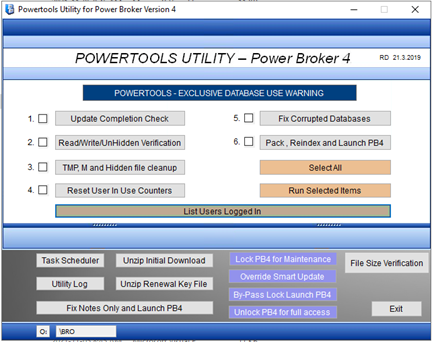

(List Users Logged In- Note that is should read Current Power Broker User SignOns = 0)
If you see any users here with a ‘Y’, ask them to log off. When you are sure that there are no users logged in, you should lock powerbroker.
Use the ‘Lock PB5 for Maintenance’ button in powertools. This will prevent anyone accidentally logging in during the update and is highly recommended.
In larger offices that can not physically have access to the computers in the brokerage, once PowerTools is ‘Locked for Maintenance’, the local technical representative may connect to the server, and go to Computer Management, Shared Folders, and then Open files, and look for any files open in the \BRO folder. They may contact the broker by phone or email but if there is no contact, the tech may just right click on the open files, and choose ‘disconnect all open files’ or ‘End Task’ them. PowerTools is locked so any user trying to log in now will be get a warming message that Power Broker is ‘Locked for Maintenance’.
You are now ready to apply your Version 5 Update:
Updating Power Broker
From the workstation, after you have downloaded the update.zip to your downloads folder on your computer, “UNZIP” the UPDATE.ZIP and it will make a folder. In the folder, there is a file called UPDATE.exe. Copy this file and place it on the ‘ROOT’ of the drive where Power Broker is installed. Example, if Power Brokers icon earlier said that it’s P:\BRO\BROW.exe, then you would place the UPDATE.EXE on the ROOT of P:\ and then follow the directions below.
Advanced instructions for local techs at the Server: From the server, and Power Broker is installed locally on C:\DATA\BRO in this example, it is ok to put the UPDATE.EXE on the ‘ROOT’ of C:\DATA and then during the install when you launch the UPDATE.EXE, you would browse to the following path to install in the next set of instructions: C:\DATA\BRO
TIP: If you are doing the update to Power Broker from the server, ensure that your PowerTools icons is pointing to C:\DATA\BRO\PowerTools.exe and that you are using this copy to ‘by-pass’ later on in the instructions.
You will see a blue screen with the Power Broker Server Update installing in the middle.
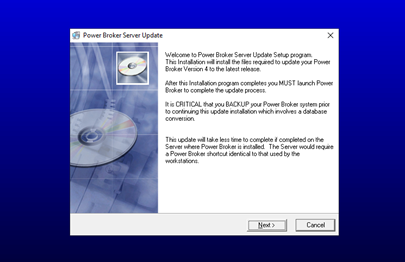
Select next and a new window will appear.
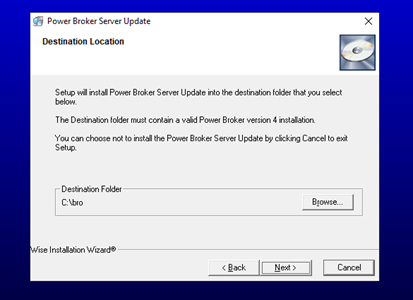
Here you will need to click Browse and select the drive letter and the bro folder within that drive. (Refer to the note you made earlier about the drive letter where bro is located) In our example, our Power Broker is P:\BRO so this is what the screen should say before proceeding
You will need to select next and wait until the update is complete. It will start counting up to 100%. When it’s at 100%, click on Finish.
If you have used PowerTools earlier to lock the system, you will need to log into PowerTools, and then click on the ‘By-Pass’ button on the bottom right. This will start your DATA CONVERSION. This part must complete. Should you receive an error during this process, please phone our support department right away.
After completion, the window will automatically open a Power Broker Log-in Screen. This means you have succesfully completed the update.
You now need to UNLOCK PB FROM Maintenance on the bottom right of PowerTools and then users may log in.
Next, log into Power Broker and at the top of your Power-Broker screen, you should see your new updated version.
If you are unable to complete your update, or need any further assistance, feel free to call our support line at 778-433-2477 or email us at techsupport@power-broker.com
+++++++++++++++++++++++++++++++++++++++++++++++++++++++++++++++++
Please select this link for these important Version 4.52 setup instructions:
Instruction for applying an update
Region Group Policy Management Settings
+++++++++++++++++++++++++++++++++++++++++++++++++++++++++++++++++
Once you have downloaded and read the Setup Instructions, please complete your download request form.
Once this Contact form has been completed, you will be provided a link to the update file.
**Please Note: After completing the Contact Form, please ‘right-click’ the download link and select <Save Link As> to download this file to a saved location.
If you require assistance, please do not hesitate to contact the support area @ 778-433-2477
Your Power Broker Support Team